> ## Documentation Index
> Fetch the complete documentation index at: https://e2b-devin-outposts-template-docs.mintlify.site/llms.txt
> Use this file to discover all available pages before exploring further.
# Devin
> Run Devin in or against secure E2B sandboxes.
[Devin](https://devin.ai) is Cognition's coding agent. You can use E2B with Devin in two ways:
* run Devin for Terminal directly inside an isolated E2B sandbox
* run a Devin Outposts worker in an E2B sandbox and route Devin sessions to it
## Run Devin for Terminal
[Devin for Terminal](https://devin.ai/terminal) runs directly from a terminal. Install it in a sandbox to give Devin an isolated workspace without access to your local machine.
```bash theme={"theme":{"light":"github-light","dark":"github-dark-default"}}
e2b sandbox create base
###
# Inside the sandbox
###
curl -fsSL https://cli.devin.ai/install.sh | bash
source /home/user/.bashrc
```
After completing Devin's interactive sign-in, run a task from the project directory:
```bash theme={"theme":{"light":"github-light","dark":"github-dark-default"}}
git clone https://github.com/your-org/your-repo.git /home/user/repo
cd /home/user/repo
devin --permission-mode dangerous -p "Add error handling to all API endpoints"
```
## Run Devin Outposts in E2B
Use the public `devin-outposts` template to run an Outposts worker and its setup UI inside an E2B sandbox. The template includes the Devin CLI, starts the setup UI on port `3000`, and reserves `/mnt/repos` as the worker workspace.
Start the template in the E2B dashboard and open its terminal.
You can also start it with the SDK:
```ts theme={"theme":{"light":"github-light","dark":"github-dark-default"}}
import { Sandbox } from "e2b"
const sandbox = await Sandbox.create("aiengineer-d56d/devin-outposts")
console.log(sandbox.sandboxId)
```
The immutable template ID is `myw11k4t1jtjbr7ckvz8`.
### Open the setup UI
When the terminal connects, it prints the exact setup URL for that sandbox and the command that reads its sandbox-local control token. The URL has this shape:
```text theme={"theme":{"light":"github-light","dark":"github-dark-default"}}
https://3000-.
```
The sandbox receives its runtime ID as `E2B_SANDBOX_ID`. A self-hosted E2B deployment must configure its own E2B domain when building the template; the sandbox cannot infer that public domain from its runtime ID.
Read the setup token inside the sandbox:
```bash theme={"theme":{"light":"github-light","dark":"github-dark-default"}}
cat /home/user/.config/devin-outposts/control-token
```
Enter it in the setup UI. A successful exchange issues a signed, HTTP-only session cookie valid for 12 hours. The control token remains reusable inside that sandbox and is not stored in browser local storage.
### Configure the worker
The setup UI asks for credentials and routing information from your Devin organization:
| Value | Purpose |
| ---------------------- | ---------------------------------------------------------------------------------------------------- |
| Devin API key | List and message sessions after this worker claims them |
| Devin API URL | API endpoint for your Devin deployment |
| Devin organization URL | Full `/org/` page used to open the task composer in the same organization as the API selection |
| Organization | Organization that owns the sessions |
| Outposts pool ID | Virtual environment the worker joins |
| Outposts worker token | Authenticates the worker to that pool |
Do not put these credentials in a public template. The setup UI stores them only in the running sandbox with file mode `0600`. Treat a snapshot of a configured sandbox as secret-bearing.
Save the configuration and start the worker. The status view shows whether the worker process is running and displays recent worker output for troubleshooting. Confirm the pool appears in Devin's virtual-environment menu before sending a task; process state alone does not prove pool registration.
If the template reports that no Outposts pools are available, the API key cannot see a pool that this worker can join. Create or assign the pool in Devin, then run **Check Devin account** again before saving the connection.
Copy the organization URL from Devin while that organization is open. For example:
```text theme={"theme":{"light":"github-light","dark":"github-dark-default"}}
https://app.devin.ai/org/your-org
```
The organization selected in the template UI controls API session listing and follow-ups. The `/org/` URL controls where Devin creates the browser session. These must refer to the same organization; an origin-only URL such as `https://app.devin.ai` is rejected because it would inherit the browser's last selected organization. Confirm the pairing in the setup form after selecting the API organization. Changing either value requires confirmation again.
### Send a task to the Outposts worker
The template UI header should say **Process running**. This means the local worker process is alive. Before sending work, also verify that the pool is available in Devin; process state alone does not prove registration.
Enter what Devin should build, change, or investigate. The template adds instructions to use `/mnt/repos` and to stop when the wrong virtual environment was selected. Nothing is sent while you type.
Choose **Open Devin with this task**. A new Devin page opens with the prompt pre-filled, but the task is not sent yet.
Look directly below the prompt. Select the **Configuration** button beside the attachment and effort controls, then open **Virtual environment**.
```text theme={"theme":{"light":"github-light","dark":"github-dark-default"}}
┌──────────────────────────────────────────────┐
│ Prepared task │
│ │
└──────────────────────────────────────────────┘
Attach [ Configuration ] Normal Send
└─ Virtual environment
```
Choose the virtual environment whose name exactly matches the pool shown in the template UI. Devin labels registered pools as Outpost environments. Do this before selecting **Send**.
Send the prepared task in Devin. Return to the template UI, select **Refresh** under **Sessions claimed by this worker**, and attach the new session after this worker claims it. You can then read history and send follow-up messages from the template UI.
The task prompt tells Devin to work in `/mnt/repos`. If Devin reports a different workspace, such as `/home/ubuntu/repos`, the session is running on a managed Devin machine instead of the selected Outposts environment.
The session is routed correctly when Devin works in `/mnt/repos`, does not ask you to choose a repository path, and the session appears in the template UI after the worker claims it.
If Devin says `/mnt/repos` is missing or reports `/home/ubuntu/repos`, stop that session. Open the task again and select the Outposts pool under **Configuration** → **Virtual environment** before sending it.
The task is passed to Devin in the browser URL. Do not include credentials or other secrets in the task field.
Creating a session through the public Devin v3 API does not currently select an Outposts pool. The initial task is therefore sent from Devin's web UI, where the virtual environment can be selected. After the worker claims the session, the template UI can display its history and send follow-up messages through the API.
### Verify the worker
The worker log is the first place to check startup and claim failures:
```bash theme={"theme":{"light":"github-light","dark":"github-dark-default"}}
devin --version
test -d /mnt/repos
tail -200 /home/user/devin-worker.log
```
Successful claim logs may contain either `serving session ` or a structured `session_id` field. Once attached, the setup UI polls the session history and renders Devin's messages as they become available.
### How the integration works
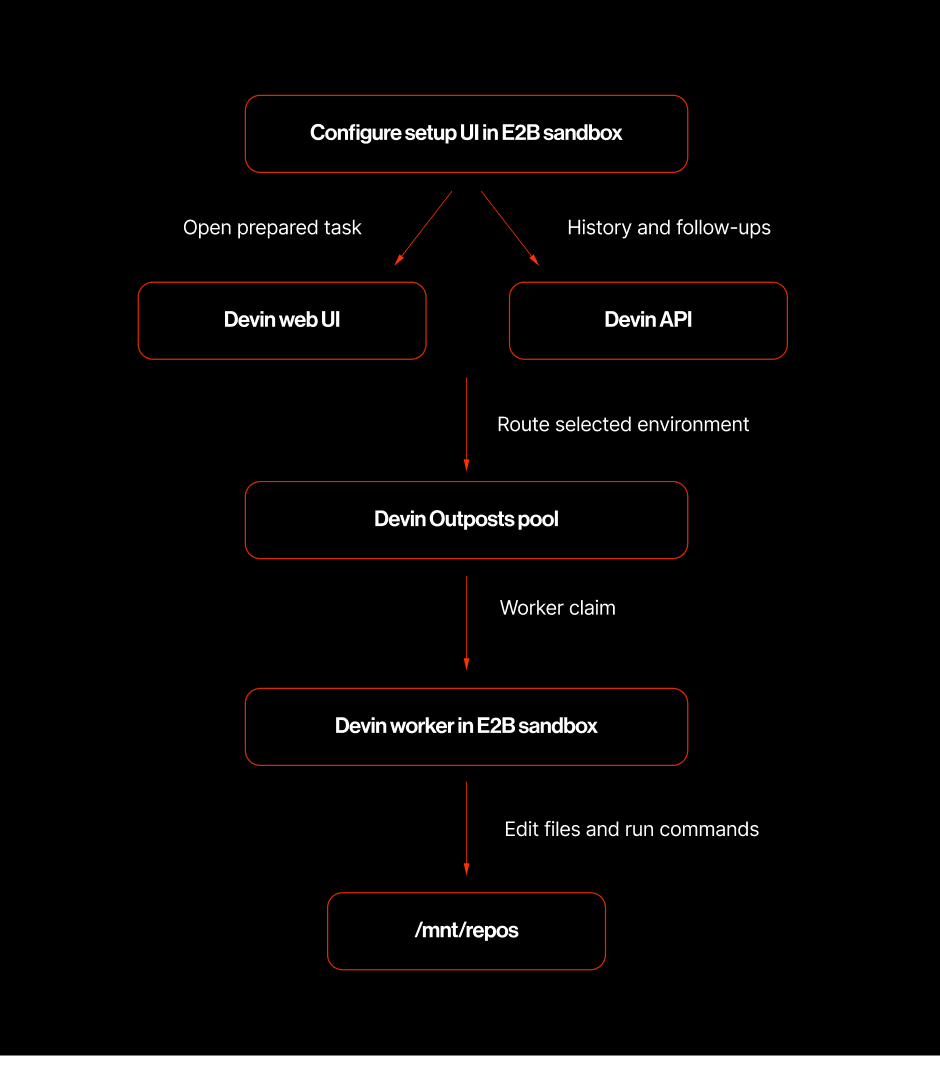 The worker, setup UI, credentials, and workspace stay inside the sandbox. The browser talks to the setup UI, and the setup UI makes authenticated Devin API requests on behalf of the user.
## Limitations
* A Devin API key does not start an Outposts worker. The worker also needs a pool ID and worker token.
* Existing Devin sessions remain assigned to the worker that claimed them. Do not assume a follow-up will migrate an old session to a replacement worker.
* Devin can assign a new task to any available worker in the selected pool. Use a dedicated pool, or stop stale workers, when validating a specific sandbox or template build.
* Use scoped, short-lived Outposts worker tokens when available.
* Web apps started by Devin can be opened through their E2B sandbox preview URLs.
The worker, setup UI, credentials, and workspace stay inside the sandbox. The browser talks to the setup UI, and the setup UI makes authenticated Devin API requests on behalf of the user.
## Limitations
* A Devin API key does not start an Outposts worker. The worker also needs a pool ID and worker token.
* Existing Devin sessions remain assigned to the worker that claimed them. Do not assume a follow-up will migrate an old session to a replacement worker.
* Devin can assign a new task to any available worker in the selected pool. Use a dedicated pool, or stop stale workers, when validating a specific sandbox or template build.
* Use scoped, short-lived Outposts worker tokens when available.
* Web apps started by Devin can be opened through their E2B sandbox preview URLs.